See what’s connected to your home or business network, identify potential security risks, and get clear guidance on what to fix.
An Australian cybersecurity company.
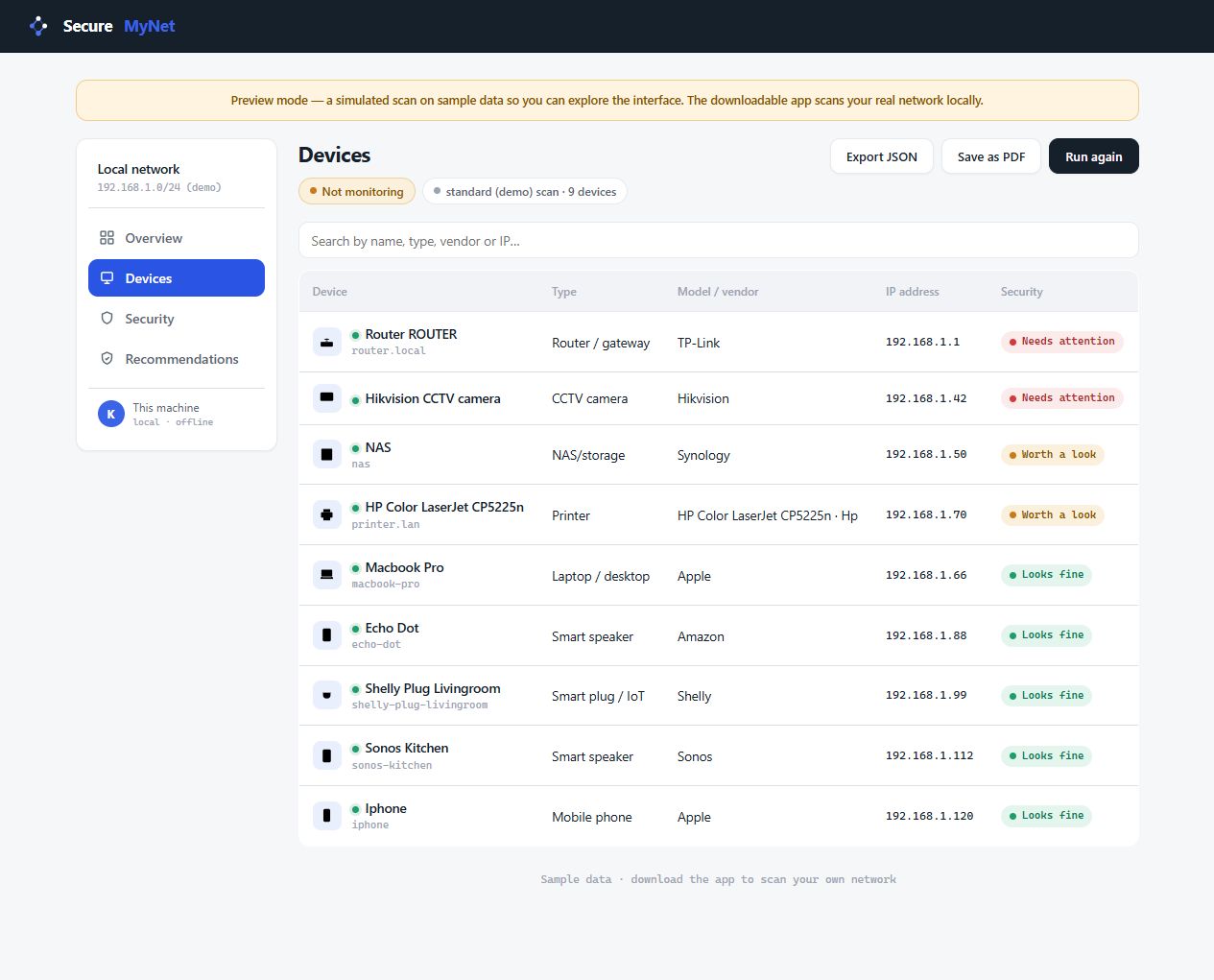
SecureNet is the network security app from SecureMyNet. It brings your devices, scan results and recommendations together so you can decide what to tackle first.
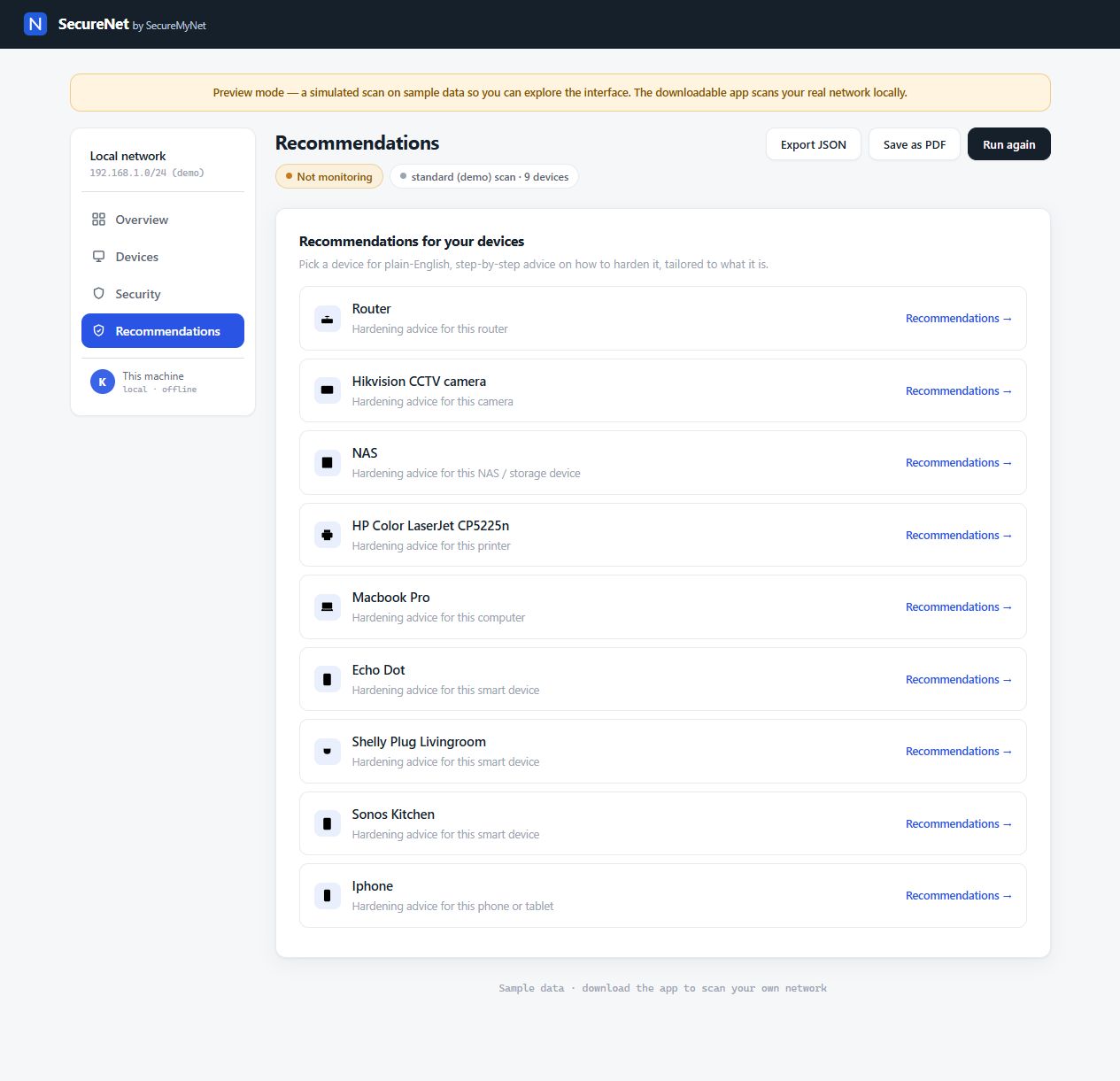
Open the app, run a scan, then review the recommended actions.
Open the Windows app to launch the dashboard in your browser. No account needed.
Scan a network you own or have permission to check. SecureNet looks for connected devices and potential security issues.
Start with the highest-priority findings. Read why each issue matters and how to address it.
Check for known software vulnerabilities, insecure services and devices you don’t recognise.
Compares device information with known vulnerabilities, including flaws recorded as exploited in real attacks. Results depend on the information a device reveals.
Identifies services such as unencrypted remote access or administration pages reachable from your network.
Review the device list to identify equipment you don’t recognise and decide whether it belongs on your network.
Highlights services and settings worth reviewing, with guidance on passwords, remote access and device configuration.
Checks for potentially outdated software when the device provides enough version information.
When monitoring is enabled, compares scans to identify new devices and changes in security findings.
SecureNet scans from your computer and displays the results in your browser. The app does not upload your scan reports.
Vulnerability updates are downloaded from a data provider, which can see your public IP address. Opening an external help link shares the device make or model used in that search.
Vulnerability sources include the US Cybersecurity and Infrastructure Security Agency’s catalogue of known exploited vulnerabilities.
Practical guidance based on ASD, NIST and CISA resources. Start improving your network security before your first scan.
The Windows download is being prepared for release. No account is needed to use the app.